
Table of Contents
Table of Contents
Is your MacBook not performing as it once did? Are you frustrated with the spinning beach ball of doom? You're not alone. Many MacBook users experience a slowdown over time. This guide is here to help. We'll explore why your MacBook might be running slow and provide actionable solutions to speed it up. From quick fixes to advanced troubleshooting, we've got you covered. Whether you're a novice user or a tech-savvy pro, you'll find useful tips to optimize your MacBook's performance.
Before we dive into the fixes, it's crucial to understand why your MacBook might be running slow.
Several factors can contribute to a sluggish MacBook. It could be due to outdated software, insufficient RAM, or a full hard drive.
Sometimes, it's the apps running in the background that hog your system resources. Other times, it could be a hardware issue or even malware.
Knowing the root cause can help you apply the most effective fix.
One common cause is outdated macOS. Keeping your system updated ensures optimal performance.
Insufficient RAM can also slow down your MacBook. More RAM allows your system to handle more tasks simultaneously.
A full hard drive is another culprit. Your MacBook needs free space for temporary files during operation.
Background applications can consume significant system resources. Some apps might be running without you even knowing.
Lastly, hardware issues or malware can also cause your MacBook to run slow.
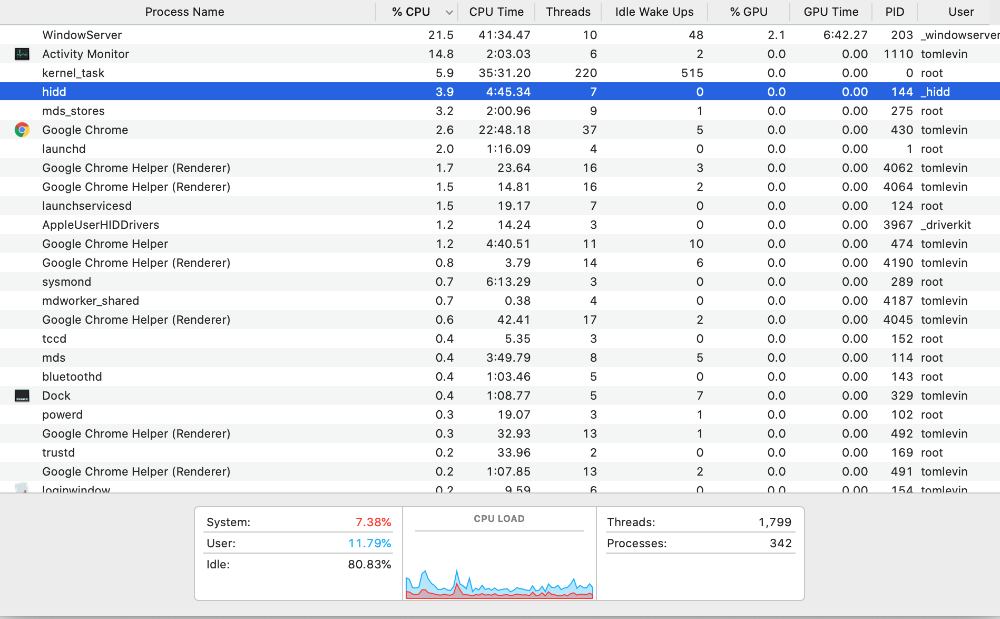
To diagnose your slow MacBook, start by checking the macOS version. Ensure it's up-to-date.
Next, open Activity Monitor to see which apps are using the most resources.
Finally, check your hard drive space. If it's almost full, it's time for a cleanup.
Before diving into more complex solutions, let's start with some quick fixes. These are simple steps that can often solve the problem of a slow MacBook.
They include restarting your MacBook, managing your storage, and updating your macOS.
These steps are easy to perform and can significantly improve your MacBook's speed.
Restarting your MacBook can solve many issues. It clears temporary files and frees up system resources.
Try this simple step first. You might be surprised at the improvement in speed.
Your MacBook needs free space to operate efficiently. If your hard drive is almost full, it can slow down your system.
Check your storage in the "About This Mac" section. If it's almost full, consider deleting unnecessary files or moving them to an external drive.
Keeping your macOS updated is crucial for optimal performance. Apple regularly releases updates to improve speed and fix bugs.
Check for updates in the "System Preferences" section. If an update is available, install it. This can significantly speed up your MacBook.
If the quick fixes didn't solve your problem, don't worry. There are more advanced solutions you can try. These steps require a bit more technical knowledge, but they can significantly improve your MacBook's speed.
These solutions include optimizing startup and login items, managing resource-intensive applications, increasing available RAM, and cleaning up your hard drive. Let's dive into each of these solutions.
Remember, always back up your data before making significant changes to your system.
Startup and login items are applications that automatically open when you start your MacBook. While some of these are necessary, others can slow down your system.
To manage these items, go to "System Preferences", then "Users & Groups", and click on your username. Then, click on "Login Items".
Here, you can see a list of applications that open at startup. Uncheck any applications that you don't need to start automatically.
Some applications use more system resources than others. These resource-intensive applications can slow down your MacBook.
You can check which applications are using the most resources in the Activity Monitor. This tool shows you how much CPU and memory each application is using.
If an application is using a lot of resources, consider closing it or finding a less resource-intensive alternative.
RAM (Random Access Memory) is where your MacBook stores data it's currently using. If your MacBook doesn't have enough RAM, it can slow down.
Check your RAM usage in the Activity Monitor. If it's consistently high, consider upgrading your RAM.
Remember, not all MacBooks allow for RAM upgrades. Check your model before purchasing new RAM.
A cluttered hard drive can slow down your MacBook. It's important to regularly clean up your hard drive to free up space.
Start by deleting unnecessary files and applications. Then, empty your trash.
You can also use the built-in storage management tools to optimize space. These tools can help you identify large files, duplicates, and other items that can be removed.
Once you've fixed your slow MacBook, it's important to maintain its performance. Regular maintenance can prevent future slowdowns and keep your MacBook running smoothly.
This includes regularly monitoring system performance, keeping your desktop organized, and seeking professional help for persistent issues. Let's look at each of these in more detail.
Remember, a well-maintained MacBook not only performs better but also lasts longer.
Monitoring your system performance can help you identify potential issues before they become serious. Use the Activity Monitor to check CPU usage, memory usage, and disk activity.
If you notice any unusual activity, such as high CPU usage when no applications are running, it could be a sign of a problem. Investigate further to identify the cause and fix it.
Regular monitoring can help you maintain optimal performance and prevent future slowdowns.
A cluttered desktop can slow down your MacBook. Each icon on your desktop takes up a small amount of system resources.
Try to keep your desktop as clean as possible. Organize your files into folders and delete any unnecessary items.
A clean and organized desktop not only improves system performance but also makes it easier to find your files.
If you've tried everything and your MacBook is still slow, it might be time to seek professional help. Some issues, such as hardware problems, require professional expertise.
Take your MacBook to an Apple Store or an authorized service provider. They can diagnose the problem and recommend the best solution.
Remember, it's better to seek professional help than to risk damaging your MacBook by trying to fix a complex issue yourself.
In conclusion, a slow MacBook can be frustrating, but it's often fixable. By understanding the common causes and implementing the solutions outlined in this guide, you can significantly improve your MacBook's performance.
Remember, regular maintenance is key to keeping your MacBook running smoothly and efficiently. Happy computing!